Screenshot to Text
Copy printed English from a long screenshot. Select one section, review its text, then move to the next. Your image stays on this device.
Start your screenshot to text conversion
Paste from your clipboard, drop an image, or choose one from your device.
JPG, PNG, or WebP. One image at a time. Up to 20 MB and 24 megapixels.How to convert a long screenshot to text
A long screenshot can contain a conversation, navigation, quoted messages, and a sentence you actually need. Recognize the image once, then select only the words or lines you want to copy directly on the original. You can check each selection against the image and correct mistakes nearby. For another OCR attempt, explicitly enter Re-recognize area and draw a rectangle over that passage. The matching part of the draft is updated while corrections elsewhere remain. The home and screenshot entrances share this workspace in the same tab, so an image you already recognized is ready to continue here.
1. Add the original screenshot
Save a screenshot from the original application, then choose it, drop it onto the upload area, or paste it from the clipboard. A direct screenshot avoids glare and motion blur from photographing a display. Keep the original resolution and check that scrolling capture includes complete messages. Recognition starts automatically and tall images are processed in segments. If you arrived from Image to Text in this tab, your image and edited draft are already here; you do not need to upload or recognize them again.
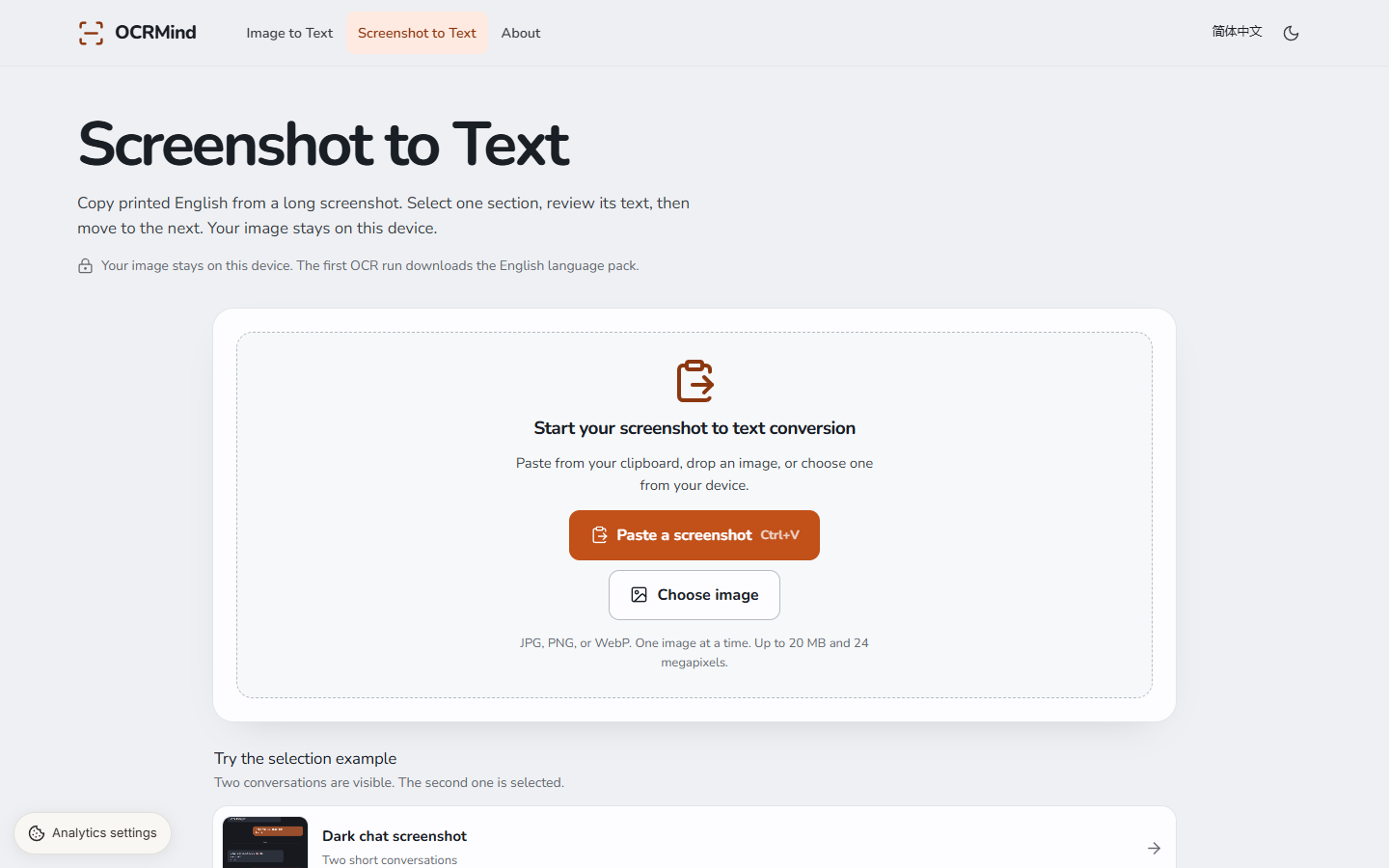
The long screenshot tool offers a chat sample and image picker. 2. Select text, or re-recognize an area
Drag across a word or multiple lines on the original; on a phone, long-press and move the blue selection handles. The nearby card shows the recognized text and offers Copy selected and Correct. To run OCR again, choose Re-recognize area first, then draw a new rectangle directly over the target text. Leave a little space around the characters. Corner handles and the original-pixel fields allow precise adjustment. Extract selection updates this area without replacing the other parts of your edited draft.
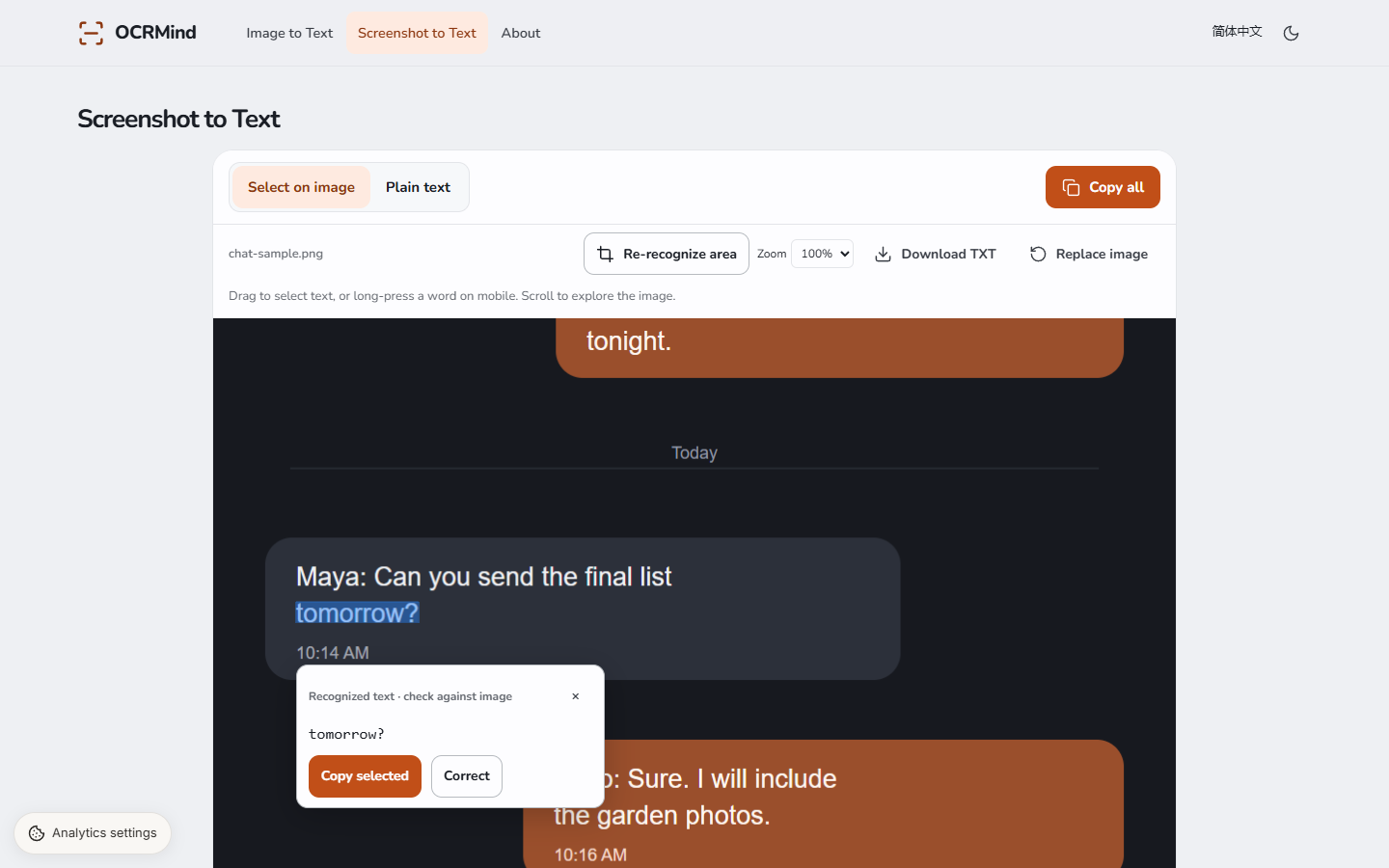
Select a word on the chat screenshot to inspect and copy the recognized text. 3. Check and save before selecting the next section
Check the recognized passage against the original before copying. Use Plain text to inspect the complete editable draft exactly as it will be copied or exported to TXT. Copy selected uses the highlighted passage; Copy all always uses the whole draft. Switching back restores the image position and selection. Correcting one word preserves the other image matches. Adding or deleting paragraphs can detach the changed passage from its original position, so newly written text is never highlighted over unrelated image text. The draft before the last OCR attempt is available for restoration in this tab. Save it before replacing the source or closing the tab.
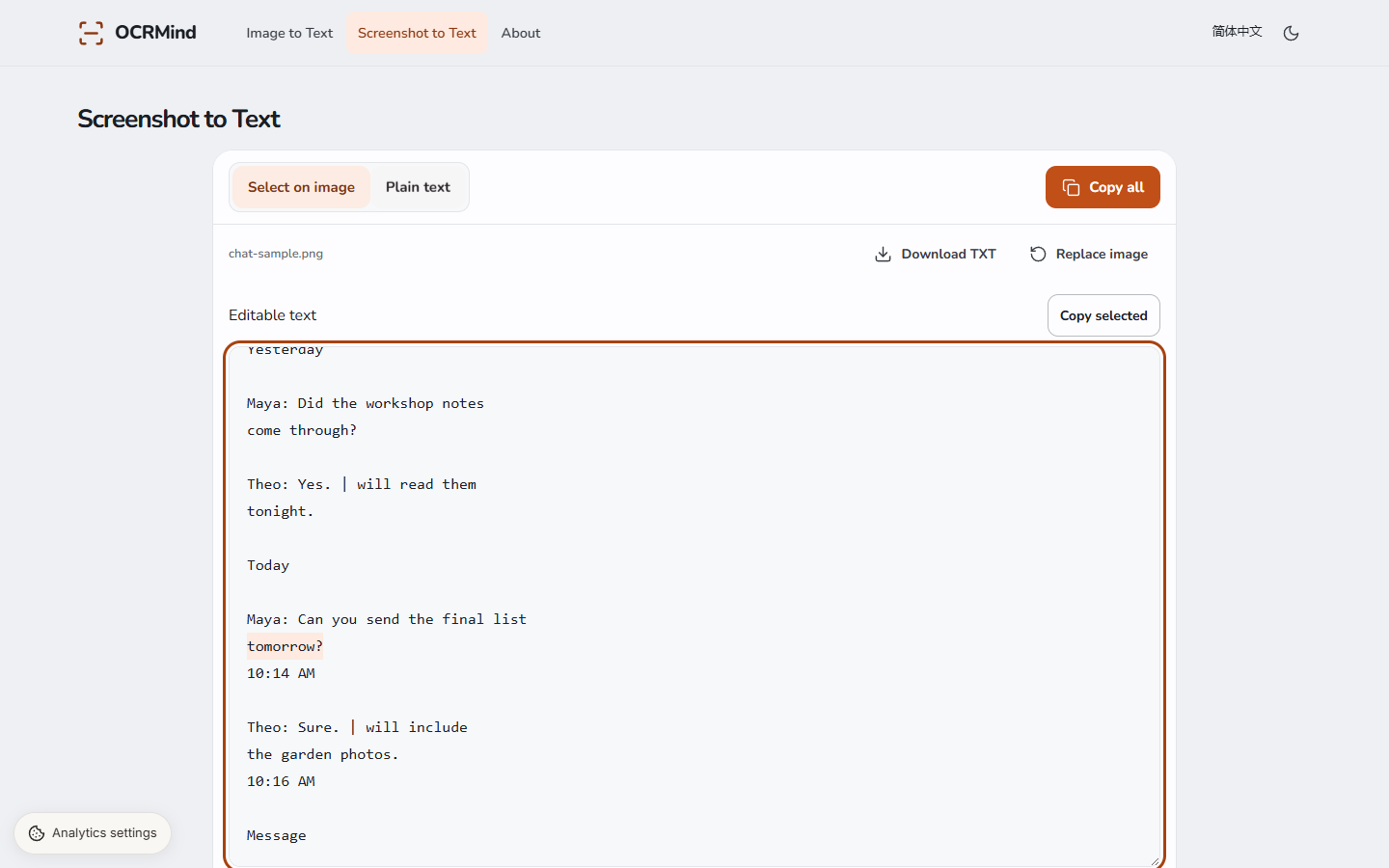
The editable full draft in Plain text, with the selected passage highlighted.
What screenshot OCR handles well—and what it cannot do
Clear printed English in chat bubbles, browser pages, software dialogs, and typed notes is the intended input. Selection is useful when a capture has repeated headers, sidebars, timestamps, or unrelated replies that you do not want in your notes. For example, isolate a workshop agenda from a conversation, or one instruction paragraph from a captured help page. The rectangle chooses pixels; it does not understand who wrote a message or whether a quotation is complete. Include the surrounding context yourself when copying something that could be misleading without the original question or speaker.
This is not a handwriting reader, a translation tool, or a chat export service. Non-English OCR, automatic speaker detection, multiple simultaneous selection boxes, and automatic merging of extracted passages are not supported. The result does not preserve chat bubble colors, links as clickable objects, or the layout of a captured spreadsheet. Tiny compressed lettering, text cut in half between captures, and low-contrast overlays can cause mistakes. If letters are unclear in the original, taking a new capture at a readable application zoom is more useful than enlarging the same damaged image. Always verify identifiers, code punctuation, and numerical values manually.
Screenshot formats, size limits, and clipboard requirements
The input must be a single PNG, JPG/JPEG, or WebP image. PNG is a useful choice for a fresh screenshot because it can preserve crisp interface lettering without JPEG artifacts. Files are limited to 20 MiB (20 × 1,024 × 1,024 bytes), 24 million decoded pixels, and a longest edge of 16,000 pixels. All three limits apply to the original image before you can draw a selection. A small rectangle cannot make an oversized source acceptable. A 1,200 by 16,000 screenshot fits the dimension limits; a 1,200 by 20,000 screenshot does not, even though both may compress to a small file.
If a scrolling capture is too tall, split it into smaller images before selecting it here. Keep a little overlap at the split so you can check that no line has been lost, then remove any repeated text when assembling your notes. The page handles one file at a time and exports plain TXT, not Excel, Word, or a searchable PDF. Pasting an image requires browser clipboard support and may request permission. On a desktop you can try Ctrl+V or Command+V; otherwise save the screenshot and use the file picker. JavaScript is required for both selection controls and recognition.
Why local processing matters for private screenshots
A screenshot can expose the whole conversation around a useful sentence, including names, notifications, or account details. Here, the image, selected rectangle, and recognized passage stay in the browser for processing. Choosing a region controls what is recognized; it is not a server-side redaction step, because the original image is not uploaded to an OCR endpoint in the first place. You can copy only the wording you need into your notes. Before sharing that text elsewhere, check whether it still includes private details or context that should be removed. Local recognition does not decide what is appropriate to share.
The website still needs network access to load pages and, on the first recognition, download its OCR software and English language model. Hosting requests and enabled analytics can record ordinary page-visit information, but not screenshots, filenames, selection coordinates, or extracted text. Analytics settings lets you opt out of measurement, and the Privacy page explains this boundary. A downloaded TXT file and text placed on your clipboard are controlled by your device and the applications you use next. Save what you need before closing the page; there is no cloud account holding a recoverable copy of your screenshot or a library of previous selections.
Questions before you start
Can I extract several sections from one screenshot?
Yes. After recognition, select a word, sentence, or several lines directly on the screenshot and choose Copy selected. Repeat anywhere on the same image. The full draft remains available through Plain text and Copy all. If a passage needs another OCR attempt, enter Re-recognize area, draw over that passage, and extract it. Changes outside that area remain in your draft.
How do I paste a screenshot?
Choose Paste a screenshot, or use Ctrl+V on Windows and Command+V on a Mac. Your clipboard must contain an image, not a copied file path or plain text. A browser may request permission or lack clipboard reading support. If it fails, save the screenshot as PNG, JPG, or WebP and choose that file instead. You do not need clipboard access to use the file picker.
What happens when I select another area?
Selecting text or drawing a rectangle does not replace your draft. Only an explicit extraction runs OCR again, and its result updates the matching area. Other corrections remain. When a paragraph edit has removed a reliable image match, the draft stays unchanged and the new reading is offered separately for copying. You can also restore the draft saved before the last recognition.
Which kinds of text work best?
Clear printed English at its original resolution works best. Handwriting and other recognition languages are not supported, even if you switch the interface to Chinese. A selection should include complete letters and lines, with a small margin around them. If tiny or compressed text is missing, take a new screenshot from the source application rather than assuming the recognized draft is complete.