Image to Text
Free online OCR for printed English. Turn a photo or scan into editable text without uploading your image or signing up.
Drop your image here
Or choose a photo, screenshot, or scan from your device.
JPG, PNG, or WebP. One image at a time. Up to 20 MB and 24 megapixels.How to convert an image to text
A picture stores the shapes of letters, not the editable characters you can select in a document. Optical character recognition, or OCR, reads those shapes and produces a text draft. Use this converter when you need the wording from a photographed page, a saved scan, or a picture of a printed note. The workflow below uses the built-in receipt example, so you can try recognition and editing before choosing any personal file. The tool is free and does not require an account.
1. Choose a clear original
Choose image opens your device file picker. You can also drop a supported file onto the page or paste an image from your clipboard. Start with the original photo rather than a thumbnail or a copy forwarded through a messaging app, because compression can blur small letters. For a photographed sheet, hold the camera parallel to the paper, avoid shadows, and make sure the entire line is in focus. The receipt sample shown here is an alternative if you only want to explore the controls. You do not need to enter an email address or create a workspace.
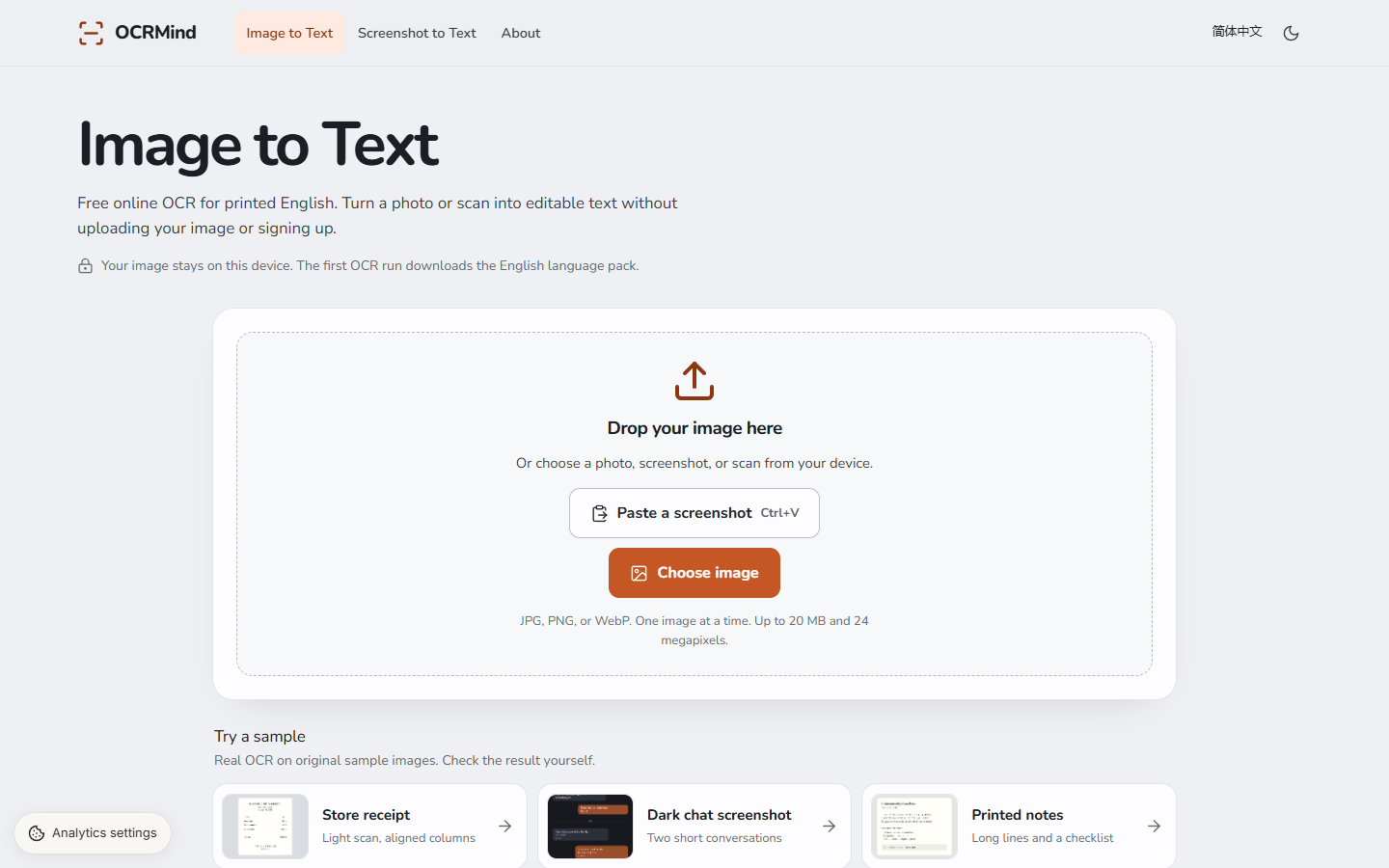
Choose image or try the receipt sample in the English interface. 2. Let the browser read the image
After you choose a file, whole-image recognition starts automatically. The first run downloads the OCR engine and its English language data from this site, so preparation may take longer. Keep the tab open while progress is shown. The clear original image stays in the workspace. Once ready, drag over its text to select a word or several lines; on a phone, long-press a word and adjust the selection handles. Ordinary swipes still scroll long images. A larger picture can take longer on an older device. If the result is empty, try a clearer original with legible printed English.
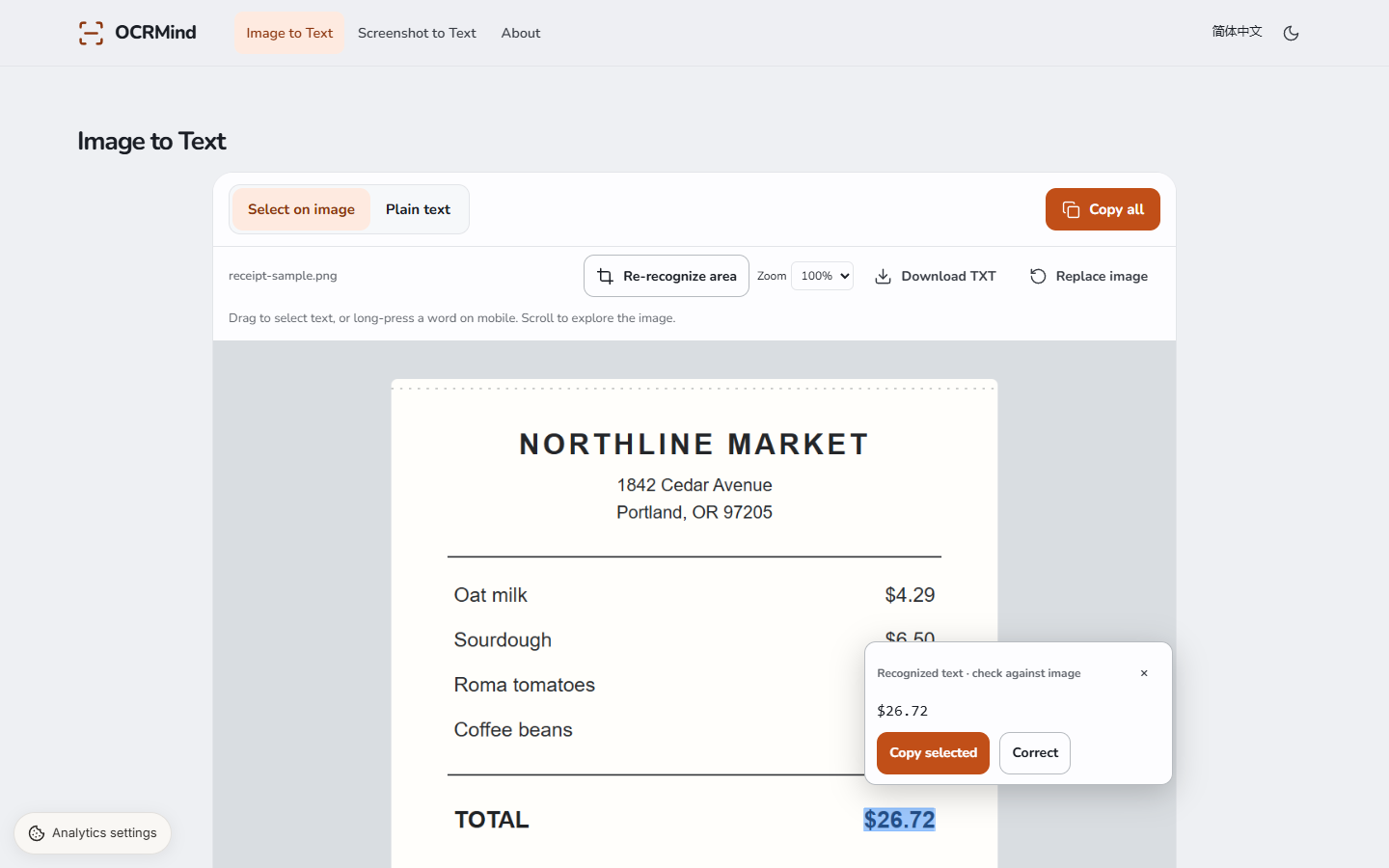
Select an amount directly on the receipt and inspect its recognized text. 3. Review, edit, and save your text
Treat OCR output as a draft. Select names, dates, decimal points, or totals on the image to see what was actually recognized. Use Correct to fix a mismatch against the original, then choose Copy selected when you need only that passage. Plain text replaces the image with the editable full draft, preserving its reading order, spaces and line breaks. Copy all and Download TXT use that same draft. Switching views does not run OCR again, and returning to the image restores your place and selection. Save before replacing the image, refreshing, or closing the tab.
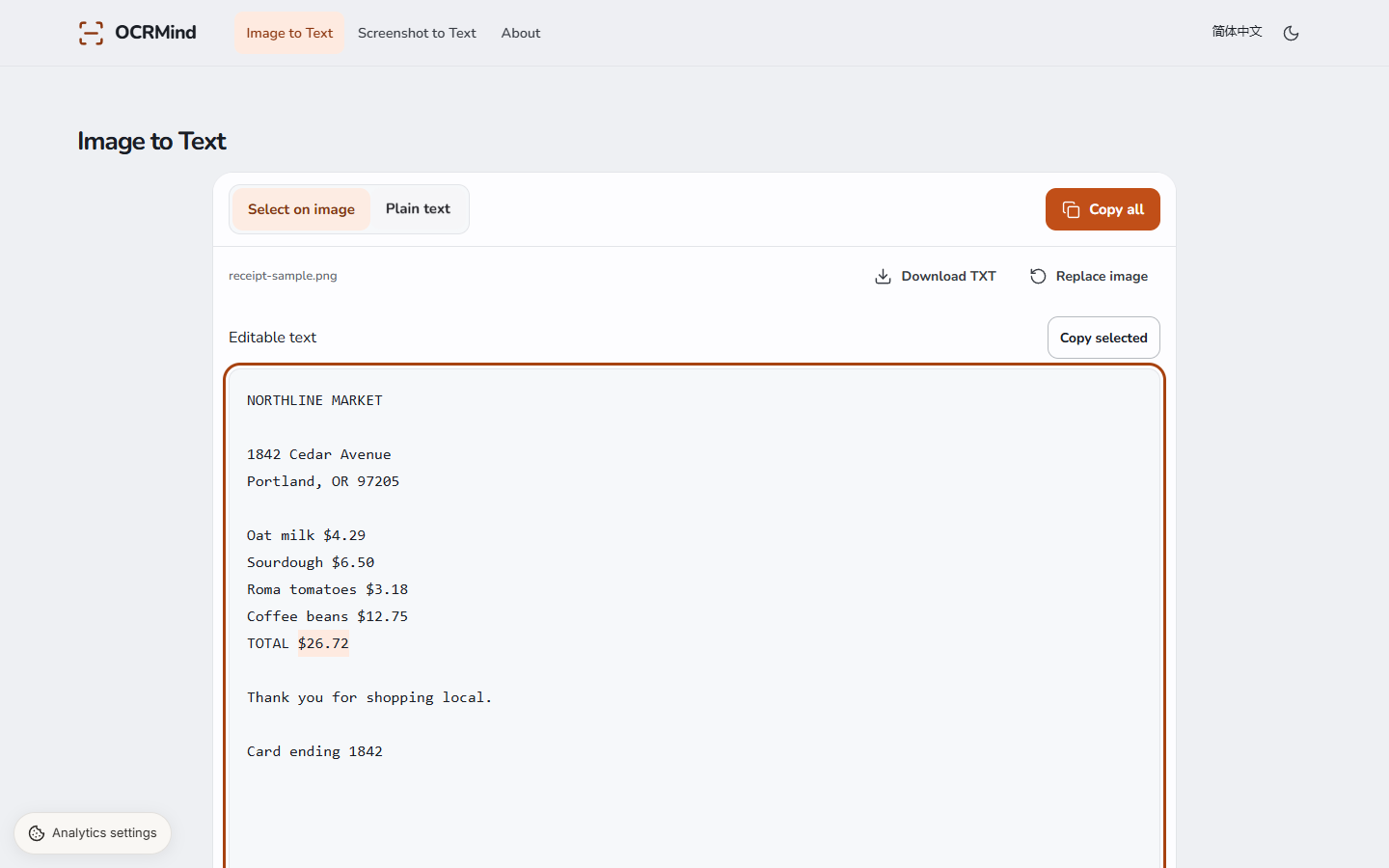
Review the editable result before copying or downloading TXT.
What this image to text converter handles well—and its limits
This release is designed for printed English: ordinary paragraphs, typed notes, simple receipts, and clear scans with readable lettering. Consistent contrast and a straightforward reading order give the engine a better starting point. A receipt can provide useful text for a personal expense note, but recognizing its numbers is different from validating the total or categorizing a transaction. Check every amount before using it. For documents with separate columns, decorative headings, overlapping stamps, or text over a photograph, the draft may mix the order or miss a line.
Handwriting and non-English recognition are not supported in this release. A Chinese interface changes the instructions, not the recognition language. Blurry photos, curved book pages, tiny labels, and damaged printing are also poor inputs; OCR cannot recover detail that the image no longer contains. The output is plain text rather than a recreation of fonts, colors, tables, or page layout. There is no Word, Excel, or searchable PDF export. If you need only a passage from a tall screenshot, use the linked Screenshot to Text tool to isolate that area instead of sorting through the entire image.
Supported image formats and practical limits
Choose one JPG, JPEG, PNG, or WebP image at a time. The file-size ceiling is 20 MiB (20 × 1,024 × 1,024 bytes, shown as 20 MB in the picker). The decoded picture must also stay within 24 million pixels and 16,000 pixels on its longest side. These are separate checks: a compressed file can be small on disk but still too large when decoded. For example, a 4,000 by 6,000 image is 24 megapixels, while a 5,000 by 6,000 image exceeds the pixel limit even if its file size is below the upload control’s limit. Choosing a file does not upload it.
PDF, HEIC, SVG, GIF, and batches of multiple files are not accepted. Export a supported raster image from your source application first; merely renaming a file extension does not convert it. If a picture exceeds the limits, crop irrelevant margins or make a smaller copy while keeping letters readable. Avoid reducing a whole page so far that punctuation disappears. JavaScript must be enabled because the recognition engine runs in the browser. Clipboard access depends on your browser and permissions; if pasting is unavailable, save the picture to your device and use Choose image.
Why processing locally matters for your documents
A page can contain much more than the sentence you want to copy: an address, a customer name, a handwritten annotation, or an unrelated account number. With local recognition, the selected image and recognized text are processed on your device rather than sent to an OCR service. You decide which corrected text to copy into another application. The application does not upload your source file, selected regions, or text result to its server, and TXT downloads are created locally. This makes the workflow useful when you prefer to avoid creating an additional server-side copy of a document.
Local OCR does not mean the website makes no network requests. Opening the page loads site assets, and the first recognition downloads software and English data. Hosting and enabled analytics can receive ordinary visit and browser information. Images, filenames, selections, and recognized text are not included in analytics events. Use Analytics settings to turn measurement off, and read the Privacy page for the distinction between document processing and website traffic. Your browser may cache OCR resources, but this is not a guarantee of offline availability. On a shared device, also consider who can access your clipboard or downloaded files after you finish.
Questions before you start
Which image formats can I use?
Use one JPG, PNG, or WebP image, up to 20 MiB, 24 megapixels, and 16,000 pixels on either side. JPEG is also supported. PDF and HEIC files need to be exported as a supported image first. Start with a clear original containing printed English. A smaller file is not necessarily a smaller decoded image, so check both the file size and dimensions if it is rejected.
Does my image leave this device?
No. The image and OCR result are processed locally in your browser. The site still loads its pages, OCR software, and English language data over the network. Ordinary website analytics are separate from the document contents and can be disabled in Analytics settings. Local processing does not protect text after you copy it to another service or save it on a shared computer.
Can it read handwriting?
No. This version supports printed English, not handwriting. It may misread handwritten marks as characters, which should not be treated as supported handwriting recognition. Curved pages, weak contrast, and complex layouts can also produce incomplete or out-of-order results. Compare the draft with the original, and use a clearer source if key words or numbers are missing.
Can I fix mistakes before copying?
Yes. Select a word on the original image to inspect and correct it, or switch to Plain text to edit the full draft. Copy all and TXT download use exactly this edited text, including spaces and line breaks. Both tool entrances share the current image and draft in the same tab. Save before replacing the image, reloading, or closing the tab; there is no permanent document storage.